Digicam Apps Fit Different iPhone Photo Workflows
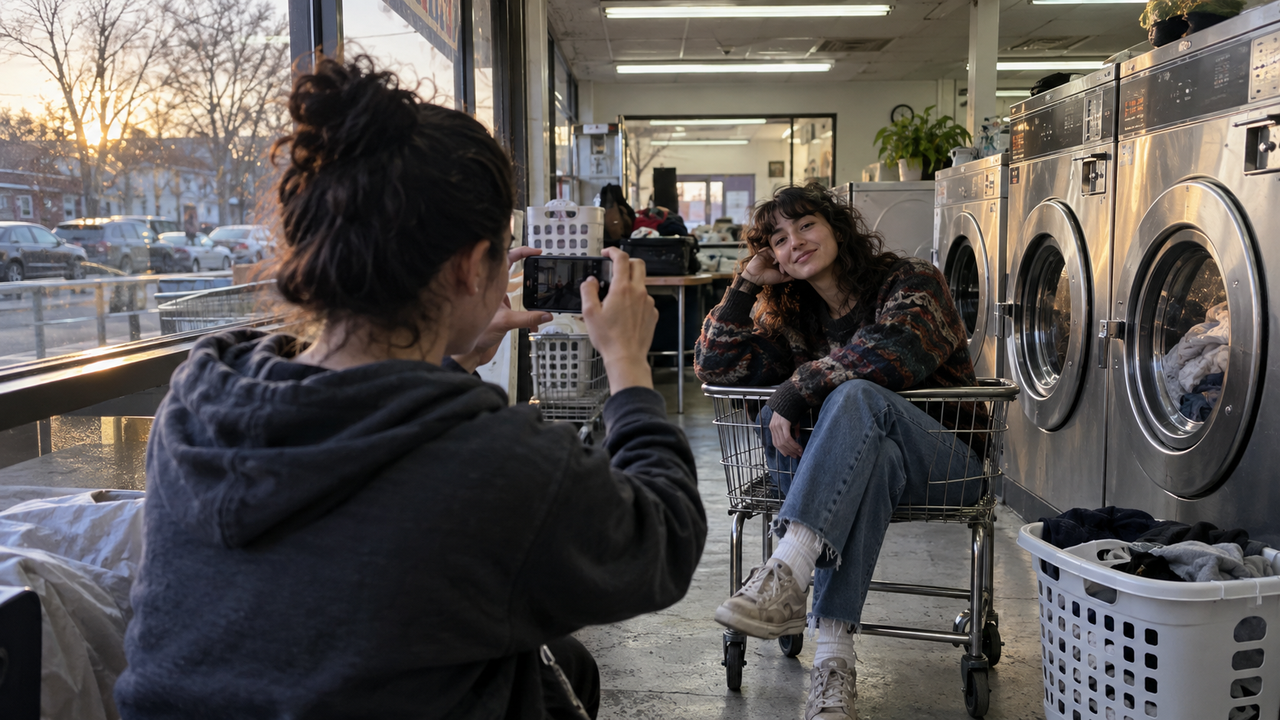
Professional-looking iPhone photos do not require the most complicated editor. They require a clear subject, usable light, deliberate framing, and a workflow that matches your decision.WayShot, VSCO, and Snapseed can all improve an iPhone photo, but they solve different problems. WayShot is the most direct option when you want to choose a visual direction and shoot—or restyle a library photo—in a few taps. VSCO is better suited to people who want to build a repeatable preset-led look and then refine it. Snapseed makes more sense when one image needs targeted corrections, such as selective brightness, perspective adjustment, or healing.That distinction matters more than a long feature list. An app feels simple when its first decision matches yours.
Three Apps Start With Three Different Editing Decisions
WayShot starts with style, VSCO starts with a preset-led edit, and Snapseed starts with the individual correction a photo needs.
If your goal is to make everyday images feel visually connected, a style-first workflow reduces friction. If you enjoy shaping color and saving a reusable treatment, a preset editor gives you more room. If the horizon is tilted, one corner is too dark, or a distracting object needs attention, a tool-based editor is the logical choice.
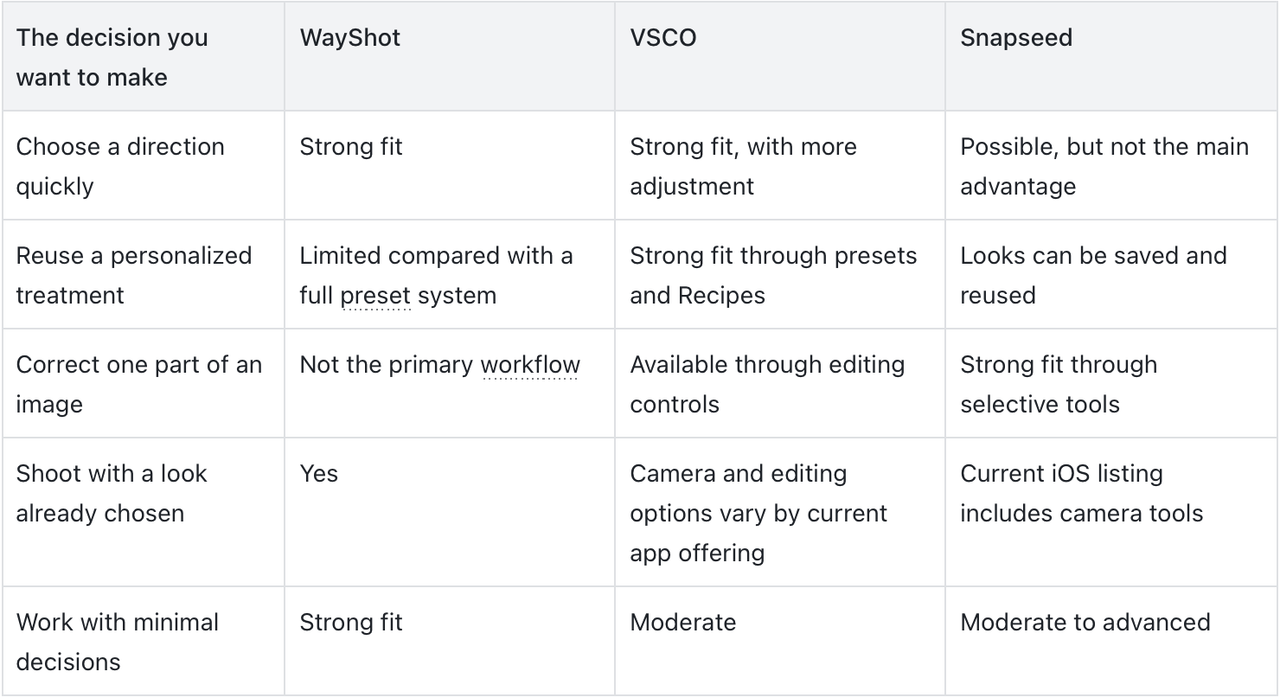
None of these approaches is universally better. The useful question is whether you are choosing a mood, building a repeatable color language, or repairing a specific visual problem.
Which App Is Simplest Without Learning Lightroom?
WayShot is the simplest fit when your main goal is a consistent visual direction rather than detailed correction.
WayShot's official iPhone listing describes a camera-and-library workflow: choose a camera Style, shoot, or apply a Style to an existing photo. Styles include categories such as DigiCam, DigiLite, Clean Girl, B&W, and ProCam. That makes the app relevant for someone who wants a natural digital-camera direction for everyday iPhone photos without opening a long chain of sliders.This speed comes with a clear boundary. WayShot is not positioned as a replacement for detailed masking, object removal, professional perspective work, or a desktop catalog. It cannot recover detail that was never captured, repair severe motion blur, or make poor light irrelevant. It is most useful after you have already made the important photographic decisions: where the subject stands, which light reaches the face, and what belongs inside the frame.For users who value that focused workflow, WayShot on the App Store is the official place to confirm current compatibility, features, and in-app purchase details.
WayShot Is for Style-First Shooting and Fast Library Edits
WayShot fits iPhone users who want to establish the mood early and keep the editing process short.
Choosing a camera Style before the shutter can be helpful when the light is stable and you already know the direction you want. A bright afternoon walk, an indoor portrait beside a window, or a casual set of weekend photos may benefit from one restrained choice carried through the session. Seeing a direction while shooting can also influence framing: a high-contrast look may need simpler backgrounds, while a softer treatment leaves more room for delicate skin and fabric tones.Applying a Style from the library is safer when the moment cannot be repeated. Mixed indoor light, a moving subject, or an important family photo deserves a clean capture first. You can then compare the styled image with the original and stop before faces or locations lose their identity. The same principle explains why natural photo editing should keep faces recognizable: consistency is useful only when the people in the frame still look like themselves.WayShot is therefore a practical choice for social posts, personal photo diaries, and everyday digicam-inspired images. A manual editor is still the better choice when the task is local skin cleanup, complex background removal, precise geometry, or fine control over a single color range.
VSCO Is for Building a Reusable Color Language
VSCO is the stronger fit for creators who want presets as a starting point and room to build a repeatable personal treatment.
According to the official VSCO photo editor page, the app combines presets with tools such as white balance, HSL, grain, and Recipes. That extra range is valuable when “make it warmer” is too vague and you want to understand whether the real issue is temperature, tint, highlight color, or saturation.Its advantage appears when you want to revisit a recipe across multiple images rather than accept a single ready-made direction. That suits a creator developing a recognizable feed, a small business keeping product photos consistent, or anyone learning color through repetition.The tradeoff is decision load. More control creates more ways to overwork a photo. Strong grain, compressed shadows, or aggressive color shifts may look intentional on one frame and artificial on another. VSCO was founded in California and serves a broad creative community, but its wider ecosystem may be more than someone wants for a quick camera-style workflow.
Snapseed Is for Precise Corrections After the Shot
Snapseed is the best fit of these three when a specific part of the photo needs correction rather than a new overall mood.
The official Snapseed App Store listing describes tools for RAW files, selective adjustments, healing, perspective, curves, white balance, and saved looks. That makes it useful for a dim face against a brighter background, converging building lines, an uneven horizon, or one distracting mark near the edge of the frame.Snapseed's strength is not that every photo needs thirty tools. It is that you can identify one problem and use one relevant control. A selective adjustment can lift the subject without flattening the entire scene. Perspective correction can address the geometry without turning the edit into a broad style change. Healing can help with a small distraction, although complex removals still call for a more specialized editor.The learning curve is lower than a full desktop workflow but higher than choosing one camera Style. Results depend on restraint: repeated structure changes, excessive sharpening, and heavy local contrast can make skin, foliage, and low-light noise look brittle.
Should You Choose a Camera Style Before Shooting or Edit Later?
Choose a Style while shooting when the light and visual intent are stable; edit later when the scene is unpredictable or the original matters.
A live style choice is efficient for a controlled sequence. If you are photographing several portraits beside the same window, one restrained direction can keep the set coherent. It also helps you notice when a scene does not suit that direction before you take twenty frames.Editing later protects flexibility. At a concert, on a rainy street, or under mixed restaurant lighting, exposure and color can change from one step to the next. Capture the cleanest available photo, keep the original, and decide afterward whether the image needs a global style, a reusable preset, or a local repair. This is also the safest way to make a photo look better without making it look over-edited.The key is not to stack workflows automatically. A WayShot Style followed by a strong VSCO preset and multiple Snapseed corrections can quickly erase the light that made the photo worth keeping. Start with the smallest intervention that solves the visible problem.
A Simple Decision Rule for Everyday iPhone Photos
Use WayShot for fast visual direction, VSCO for repeatable color development, and Snapseed for targeted repair.
Before opening an app, finish this sentence: “This photo would be stronger if…” If the answer is “the set shared one clear mood,” begin with WayShot. If it is “my color treatment was consistent across a series,” begin with VSCO. If it is “the face were brighter, the lines straighter, or that small distraction gone,” begin with Snapseed.You may also need none of them. The native Photos app is often enough for a modest crop, exposure correction, or color adjustment. A full editor is more appropriate for large RAW libraries, layered composites, detailed masks, calibrated color, or client work that requires repeatable technical output.For a wider look at the category, you can compare broader digicam app workflows. The practical lesson is simpler than any ranking: choose the workflow that removes unnecessary decisions while preserving the person, place, and light that were actually there.