Top iPhone Camera Apps for Natural-Looking Portraits in 2026

The best iPhone camera app for a natural-looking portrait depends on what the photo needs. Apple Camera is the fastest choice for capture, WayShot gives a portrait an overall visual direction, Halide offers manual control, Lightroom handles careful light and color correction, and Facetune is designed for targeted retouching.No app can make every face look natural automatically. Start with readable light, accurate focus, and a familiar expression; then choose the lightest tool that solves the remaining problem.
The Quick Answer
- Apple Camera: best for fast, familiar portraits with minimal setup.
- WayShot: best for giving the whole portrait a coherent Style without building a manual edit.
- Halide Mark III: best for photographers who want manual control at capture.
- Adobe Lightroom: best for measured adjustments to exposure, highlights, shadows, and color.
- Facetune: best for small, local portrait touch-ups when used carefully.
What Makes an iPhone Portrait Look Natural?
A natural portrait keeps the person recognizable. Skin should retain believable texture, the face should match the light in the room or outdoor setting, and background blur should not create strange edges around hair, glasses, or clothing.Before choosing an app, check the original at full size. If the eyes are sharp, highlights still contain detail, and the expression feels familiar, editing can help. If the frame has severe motion blur, missed focus, complete overexposure, or details the camera never recorded, a different app cannot rebuild the missing photograph.For a practical editing standard, see why natural portrait editing should keep faces recognizable. If the capture itself is the problem, this guide to using window light for natural iPhone portraits explains what to fix before applying a look.
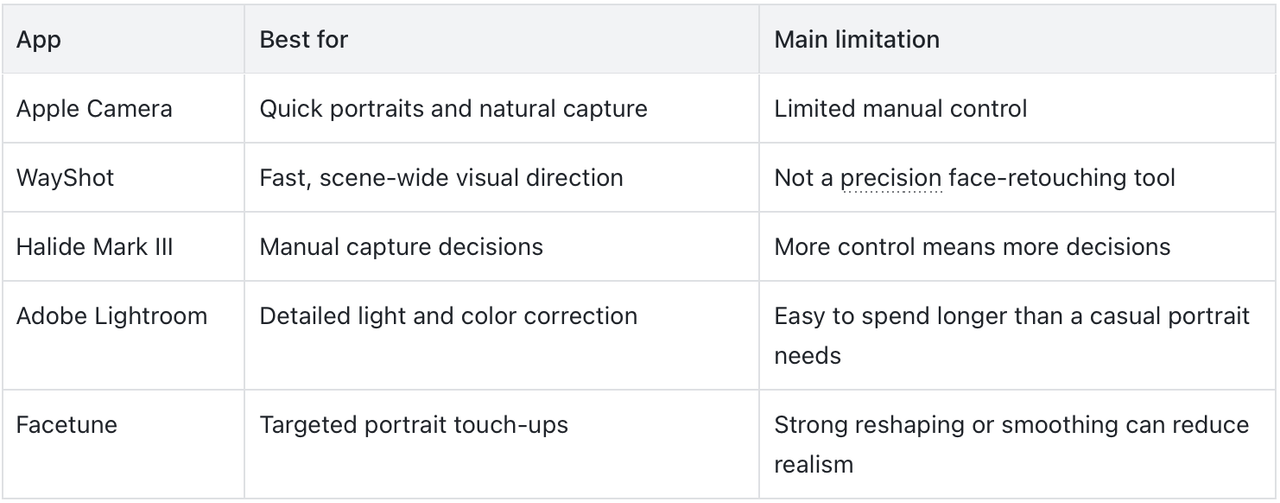
1. Apple Camera: Best for Fast, Familiar Portraits
The built-in Camera app is the sensible starting point when the moment matters more than a custom workflow. Apple’s current iPhone portrait guide explains how supported models use Portrait mode and depth information to create and adjust a depth-of-field effect.It suits family photos, candid expressions, and moving subjects because it is immediately available. Its limitation is control: photographers who want to set exposure, focus, or white balance more deliberately may prefer a manual camera.
2. WayShot: Best for a Quick Overall Portrait Style
WayShot fits portraits that are already clear but need a more consistent mood. You can choose a camera Style while shooting or apply a Style to a photo from your library, so the decision can happen before the shutter or after you have selected the strongest expression.This is useful for lifestyle portraits, profile photos, and social posts where a scene-wide treatment is more helpful than a series of local adjustments. WayShot is not designed to reconstruct a face or rescue a failed capture. A Style cannot fix severe blur, missed focus, completely clipped highlights, or detail that was never recorded. The current WayShot iPhone app is best treated as a fast visual-direction tool, not a substitute for careful light or precision retouching.
3. Halide Mark III: Best for Manual Capture Control
Halide is the strongest fit here for photographers who want to decide more before the portrait is taken. Its current App Store listing describes manual exposure controls, including shutter speed, ISO, and white balance, plus manual-focus aids.That control can help when skin tone shifts under mixed light or when the phone keeps changing exposure between frames. It is less suitable for someone who wants to open the camera and shoot immediately without thinking about settings. See the official Halide Mark III listing for its current capture options.
4. Adobe Lightroom: Best for Careful Light and Color Correction
Lightroom is useful when the portrait is sharp but the lighting needs measured correction. Its mobile tools cover exposure, highlights, shadows, color, presets, and batch-style workflows, making it practical when several portraits from the same setting should feel related.The natural approach is to correct the photograph, not redesign the person. Keep skin connected to the surrounding light, protect bright areas, and avoid lifting every shadow until the face looks flat. The official Lightroom iPhone listing details its current editing tools.
5. Facetune: Best for Small, Targeted Touch-Ups
Facetune is the most specialized portrait editor in this list. Its current tools include smoothing, reshaping, lighting, and color correction, which can address a specific area rather than applying one look across the whole frame.That precision also requires restraint. A small temporary blemish correction is a different decision from changing facial shape or removing all skin texture. If the goal is a natural portrait, compare the edit with the original and stop while the person still looks familiar. Review the current tools on the official Facetune listing.
Which iPhone Portrait App Should You Choose?
Choose the app according to the stage where the problem appears. Use Apple Camera for speed, Halide for manual decisions before capture, WayShot for a fast overall Style, Lightroom for detailed light and color work, and Facetune for a small local correction.If the source photo is strong, the simplest workflow is often enough. Keep the eyes sharp, let the light explain the face, preserve recognizable features, and use editing to support the portrait rather than announce itself.
FAQ
What is the best iPhone camera app for natural-looking portraits?
There is no single best choice for every portrait. Apple Camera is practical for fast capture, WayShot for an overall Style, Halide for manual shooting controls, Lightroom for light and color correction, and Facetune for targeted retouching.
Which app is best for keeping skin texture natural?
Natural skin depends more on restrained editing than on one app. Start with soft, readable light, then avoid aggressive smoothing, sharpening, or color shifts that make the face inconsistent with the rest of the scene.
Should I choose a Style before or after taking a portrait?
Choose a Style while shooting when the light is stable and the preview helps guide the mood. Apply it afterward when you want to compare expressions first or when several frames were taken under changing light.
Can a portrait app fix blur or an out-of-focus face?
No Style can reliably restore severe motion blur, missed focus, complete overexposure, or detail the camera did not record. Retake the portrait when possible rather than increasing the effect.