Best Photo Editing Apps for Beginners in 2026

The best photo editing app for a beginner is the one that makes the next useful decision obvious. Apple Photos is the easiest place to learn crop, alignment, and basic light; WayShot gives a photo one clear Style; Google Photos offers guided improvements; Lightroom adds room to grow; and Snapseed is useful when you are ready to correct one part of the frame.Start with composition and exposure before exploring effects. A smaller toolset used with a clear purpose will usually produce a more natural photo than a feature-heavy app used without a plan.
The quick answer
- Apple Photos: best first editor for cropping, straightening, and basic light or color changes.
- WayShot: best for giving the whole photo a coherent Style without learning many sliders.
- Google Photos: best for guided suggestions followed by simple manual adjustments.
- Adobe Lightroom: best for beginners who want an easy starting point and deeper control later.
- Snapseed: best for learning selective corrections after the overall image already works.
Which beginner photo editor should you choose?
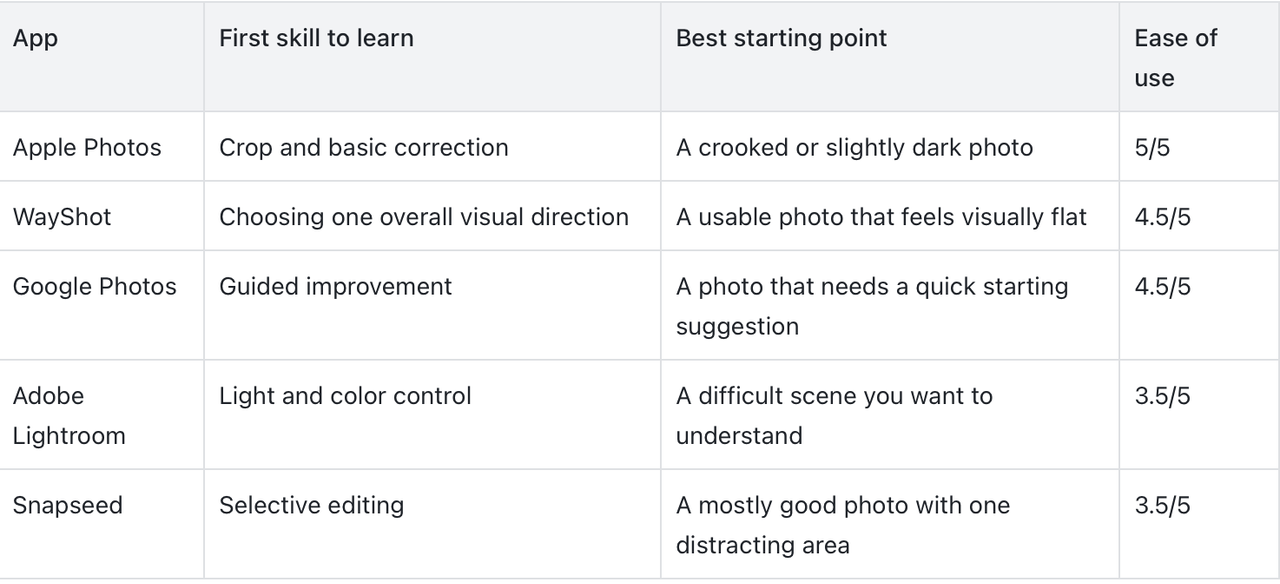
These ease scores are editorial assessments of the starting workflow, not laboratory test results. A lower score does not mean a weaker app; it means the app asks the beginner to make more decisions.
1. Apple Photos — Best for learning the essentials
Device: iPhone and iPad Ease of use: 5/5The built-in Photos app is the best place to learn whether an image needs editing at all. Apple’s current tools let you crop, rotate, flip, straighten, and correct perspective, with the option to revert saved changes. That is enough to fix many everyday problems before color becomes a distraction.Begin with the frame. Level a horizon, remove an empty edge, and check whether the subject is easier to read. Then make a small exposure or color adjustment only if it improves the subject. Apple’s iPhone editing guide is a useful reference for these core actions.Best for: a first editing habit built around composition rather than effects.
2. WayShot — Best for one clear overall Style
Device: iPhone Ease of use: 4.5/5WayShot is a practical next step when the photo is technically usable but lacks a clear visual direction. Instead of asking a beginner to balance many controls, it offers Styles designed for different lighting conditions and moods. You can choose a Style while shooting or apply one to a photo already in your library.This is helpful for learning how an overall treatment changes color, contrast, and atmosphere together. It is not the right choice for detailed masking, object removal, or complex retouching. A Style should support the scene rather than hide a weak capture. The five-step WayShot editing workflow shows how to keep that decision simple.Best for: beginners who want a coherent scene-level result without building an edit control by control.
3. Google Photos — Best for guided improvements
Device: iPhone and iPad Ease of use: 4.5/5Google Photos is useful when you want a suggested starting point and a small set of understandable follow-up choices. Its editing workflow can surface suggestions based on the photo, while also providing crop, straighten, light, and color controls.Treat the suggestion as a question, not a final answer. Compare it with the original, identify what actually improved, and reduce or replace anything that makes skin, sky, or indoor light look unnatural. Google documents the current iPhone workflow in its Google Photos editing help.Best for: someone who wants guidance but still wants to understand the final choice.
4. Adobe Lightroom — Best for learning controls you can grow into
Device: iPhone and iPad Ease of use: 3.5/5Adobe Lightroom offers beginner-friendly starting points such as Quick Actions and presets, then opens into more detailed controls for exposure, highlights, shadows, and color. It makes sense when you want to understand why a photo feels too dark, too flat, or dominated by one color.Learn one panel at a time. Start with light, move to white balance or color only when necessary, and leave selective tools for later. Opening every control at once makes it difficult to tell which change helped.Best for: beginners who are willing to spend more time now in exchange for a deeper editing vocabulary later.
5. Snapseed — Best for fixing one area without changing everything
Device: iPhone and iPad Ease of use: 3.5/5Snapseed includes more than 30 tools and filters, along with masking, RAW support, and selective editing. Its real value for a beginner appears after the whole image is already close: you can address a face in shade, a bright corner, or a small area with an unwanted color shift.Selective editing should be the last step, not the first. If the entire photo is too dark, fix the global exposure before brightening one face. If only one area is wrong, adjust that area gently and check that the transition is invisible.Best for: beginners ready to move from whole-photo changes to targeted corrections.
What should a beginner edit first?
Use the same order for most photos:
- Composition: crop distractions, straighten the horizon, and correct obvious perspective problems.
- Exposure: make the subject readable without flattening every shadow or clipping bright areas.
- Color: correct an unwanted cast before increasing saturation.
- Overall Style: choose one visual direction that fits the subject and light.
- Local corrections: adjust a specific area only when the rest of the frame already works.
This order prevents a common beginner mistake: choosing an effect before deciding what is actually wrong with the photograph.
When should you stop editing?
Stop when the subject is clearer and the edit no longer calls attention to itself. Compare the result with the original at normal viewing size, not only while zoomed in. Check faces, neutral surfaces, bright windows, and deep shadows. If skin has shifted color, whites are tinted, or texture looks brittle, step back.For portraits, the simplest test is recognition: the person should still look like themselves. WayShot’s guide to keeping faces recognizable through natural editing explains why identity and expression matter more than polish.
What can no editing app repair?
An editing app can refine a usable capture, but it cannot recreate information the camera never recorded. A Style, preset, or adjustment cannot repair severe motion blur, missed focus, complete overexposure, or missing detail. If the moment can be photographed again, a steadier capture, better focus, and protected highlights are more valuable than a stronger edit.
Frequently asked questions
What is the easiest photo editing app for a complete beginner?
Apple Photos is the easiest place to begin because it covers crop, straightening, perspective, and basic light or color changes inside the existing photo library. WayShot is a simple next choice when the goal is one coherent overall Style rather than manual correction.
Should a beginner use presets or manual controls?
Use a preset or Style when you need quick visual direction, then use manual controls only to solve a specific remaining problem. Manual editing becomes easier when each adjustment has a clear purpose.
Is Lightroom too difficult for beginners?
No, but it is easier to learn in stages. Begin with Quick Actions, presets, and the Light controls. Add detailed color and selective adjustments only after you can explain what the photo needs.
Can a beginner make phone photos look professional?
A beginner can make photos clearer and more consistent by improving framing, exposure, color, and visual direction. Editing cannot replace accurate focus, a steady capture, or recorded highlight detail, so the strongest results begin when the photo is taken.
Bottom line
Start with Apple Photos for the fundamentals, WayShot for a fast overall Style, Google Photos for guided suggestions, Lightroom for deeper learning, or Snapseed for selective corrections. The best beginner workflow is not the one with the most tools. It is the one that teaches you to identify one problem, make one purposeful change, and stop when the photograph reads clearly.
Used links
- https://support.apple.com/guide/iphone/crop-rotate-flip-straighten-photos-videos-iph0f3ebb1dd/ios
- https://apps.apple.com/us/app/wayshot-aesthetic-photo-editor/id6749303003
- https://support.google.com/photos/answer/6128850?co=GENIE.Platform%3DiOS&hl=en
- https://apps.apple.com/us/app/lightroom-ai-photo-editor/id878783582
- https://apps.apple.com/us/app/snapseed-photo-editor/id439438619
- https://www.wayshot.ai/blog/using-wayshot-for-simple-digicam-style-iphone-editing-in-5-steps
- https://www.wayshot.ai/blog/natural-photo-editing-keeps-faces-recognizable