Best Aesthetic Photo Apps for Editing Your Camera Roll
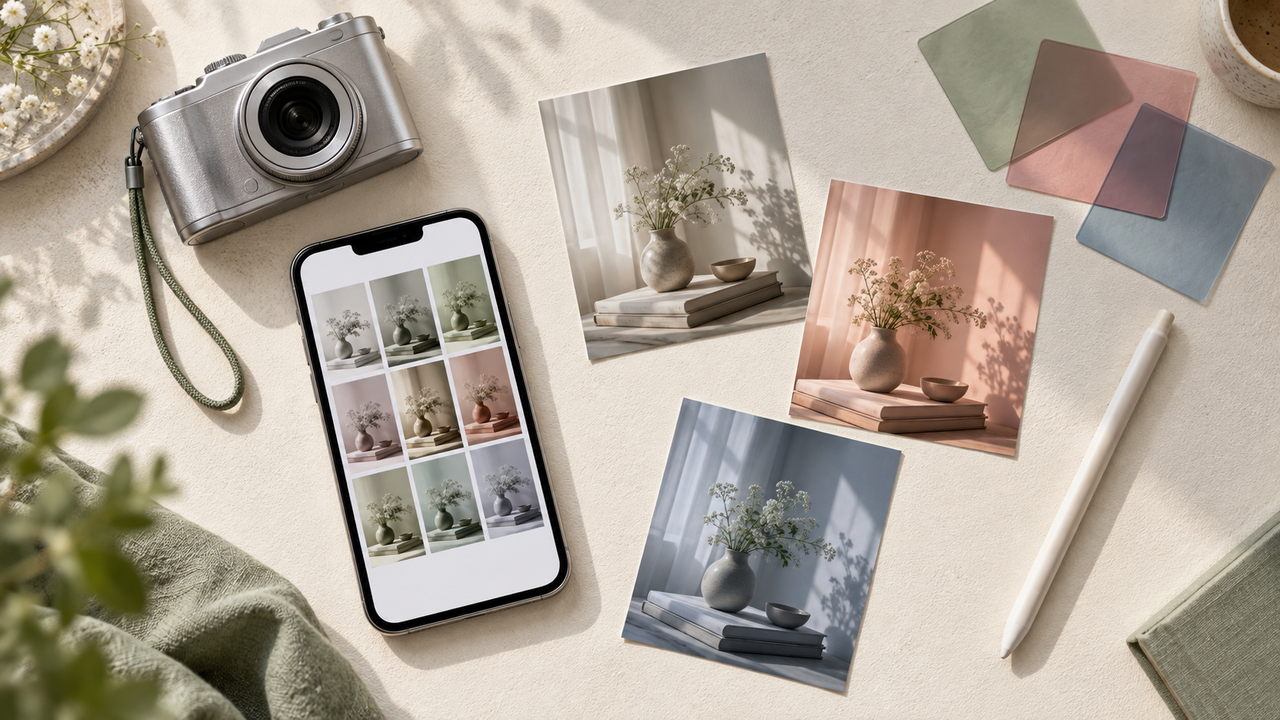
A practical guide to choosing an aesthetic photo editor for existing iPhone photos—without turning every image into the same preset.
What are the best aesthetic photo apps for editing your camera roll?
The best choice depends on how much control you want. WayShot is the simplest option for giving existing photos a clear camera-inspired direction in a few taps. VSCO and Tezza are useful for building a consistent preset-based look across a group of images. Afterlight leans into film texture and overlays, while Photomator and Lightroom offer more precise color and cleanup tools.A good aesthetic editor should do more than add a dramatic filter. It should help color, light, texture, and contrast work together while keeping the subject and setting recognizable.
Quick picks
- Best for a fast, scene-led look: WayShot
- Best for repeatable presets: VSCO
- Best for warm lifestyle edits: Tezza
- Best for film texture and overlays: Afterlight
- Best for Apple Photos integration: Photomator
- Best for deeper color control: Lightroom
1. WayShot: best for giving an existing photo a clear camera feel
Available on: iPhoneWayShot combines a camera with an editor for photos already in your library. Its current styles cover direct-flash color, lighter daylight treatment, warm portraits, black-and-white images, and a cleaner polished finish. That makes it useful when a camera-roll photo feels visually flat but does not need a long manual edit.The easiest way to choose a look is to start with the scene rather than the filter name. A night-out image may suit a stronger flash-led direction, while travel or everyday daylight photos usually need a lighter touch. The WayShot style guide explains those differences, and this guide to a digital-camera look for everyday iPhone photos shows why color, tonal depth, and texture should support the original moment rather than replace it.
Choose it when: the goal is a distinctive result with minimal setup. For detailed masking, object removal, or fine tonal control, a more manual editor will be a better fit.
2. VSCO: best for a consistent preset system
Available on: iPhone and iPadVSCO is built around presets, film-inspired looks, and reusable editing recipes. It also supports adjustments such as exposure, contrast, white balance, HSL, grain, and split tone. When several photos need to feel like part of the same set, edits can be pasted across a batch instead of rebuilt one image at a time.
Choose it when: consistency matters more than a one-off effect, especially for travel albums, photo dumps, or a recurring social style.
3. Tezza: best for warm, lifestyle-focused edits
Available on: iPhoneTezza pairs curated presets with grain, blur, HSL adjustments, retro frames, overlays, and layout templates. Its copy-and-paste workflow makes it easier to keep a group of portraits, café photos, outfits, or vacation images in the same visual family.
Choose it when: the desired result is polished, warm, and designed to work as a set rather than as isolated images.
4. Afterlight: best for film texture and layered effects
Available on: iPhone and iPadAfterlight focuses on film-inspired presets, light leaks, dust, paper textures, halation, double exposure, grain, frames, and borders. It also includes standard editing controls for brightness, contrast, vibrance, curves, structure, and sharpening.
Choose it when: texture is part of the idea. Start with one film treatment, then add only one finishing effect so the image still reads clearly.
5. Photomator: best for editing directly around the Apple Photos library
Available on: iPhone, iPad, and MacPhotomator combines nondestructive color adjustments, presets, automatic subject and background selections, object removal, denoise, cropping, and batch editing. Its Photos integration is especially useful when the camera roll is the main library and there is no need to build a separate social-first workspace.
Choose it when: the photo needs careful correction before a style is added—for example, uneven lighting, distracting objects, or color that needs selective adjustment.
6. Lightroom: best for a flexible workflow that can grow with you
Available on: iPhone and iPadAdobe Lightroom offers quick actions and adaptive presets for fast edits, plus exposure, highlights, shadows, hue, saturation, color grading, background blur, distraction removal, and reusable presets for more control. Batch tools help apply a consistent starting point to a larger set of images.
Choose it when: the same app needs to handle quick everyday edits now and more detailed color work later.
How should you choose an aesthetic editing app?
Start with the result, not the longest feature list. If the photo already looks good and only needs a clear visual direction, WayShot, VSCO, or Tezza can shorten the process. If the image first needs correction—such as selective color work, cleanup, or shadow recovery—Photomator or Lightroom offers more control. Afterlight is the stronger option when grain, light leaks, frames, or other film textures are central to the look.It is also worth deciding whether the aesthetic should live in one photo or across the whole camera roll. For a single image, choose the app that matches the scene. For a series, use a repeatable preset or style and keep exposure and white balance close from photo to photo.
A simple camera-roll editing workflow
- Choose a small set first. Edit three to five related photos before applying the look to an entire album.
- Correct the basics. Fix exposure and white balance before adding grain, overlays, or strong color.
- Pick one visual direction. Warm, muted, flash-led, monochrome, or film-textured is usually enough.
- Keep the subject recognizable. Compare the edit with the original at full size, especially around faces, highlights, and fine details.
- Repeat with restraint. Copy the core treatment across the set, then make small exposure adjustments photo by photo.
Frequently asked questions
Which aesthetic photo app is easiest for existing photos?
WayShot is a straightforward starting point because it can apply a scene-oriented camera style to a photo from the iPhone library without requiring a long manual recipe. VSCO and Tezza are also approachable when the goal is to start from a preset and make a few adjustments.
Can one preset work for an entire camera roll?
One preset can create consistency, but it rarely works unchanged in every lighting condition. Use the same base look, then adjust exposure, white balance, and intensity for each image.
Do aesthetic apps replace basic photo correction?
No. Strong styling cannot reliably fix missed focus, clipped highlights, or heavy motion blur. Correct the image first when possible, then add the aesthetic treatment.
How can edited photos still look natural?
Keep skin tone, important object colors, and highlight detail believable. Reduce the effect when grain, saturation, blur, or overlays become more noticeable than the subject.
Final answer
For the fastest route from an ordinary camera-roll photo to a defined camera-inspired look, start with WayShot. Choose VSCO or Tezza for consistent preset-led sets, Afterlight for film texture, Photomator for close Photos-library integration, and Lightroom for the broadest range of manual control. The best app is the one that makes the intended mood clearer while preserving the moment that made the photo worth keeping.