Seamless Instagram Carousels: Top Layout Apps & Workflow (2026)
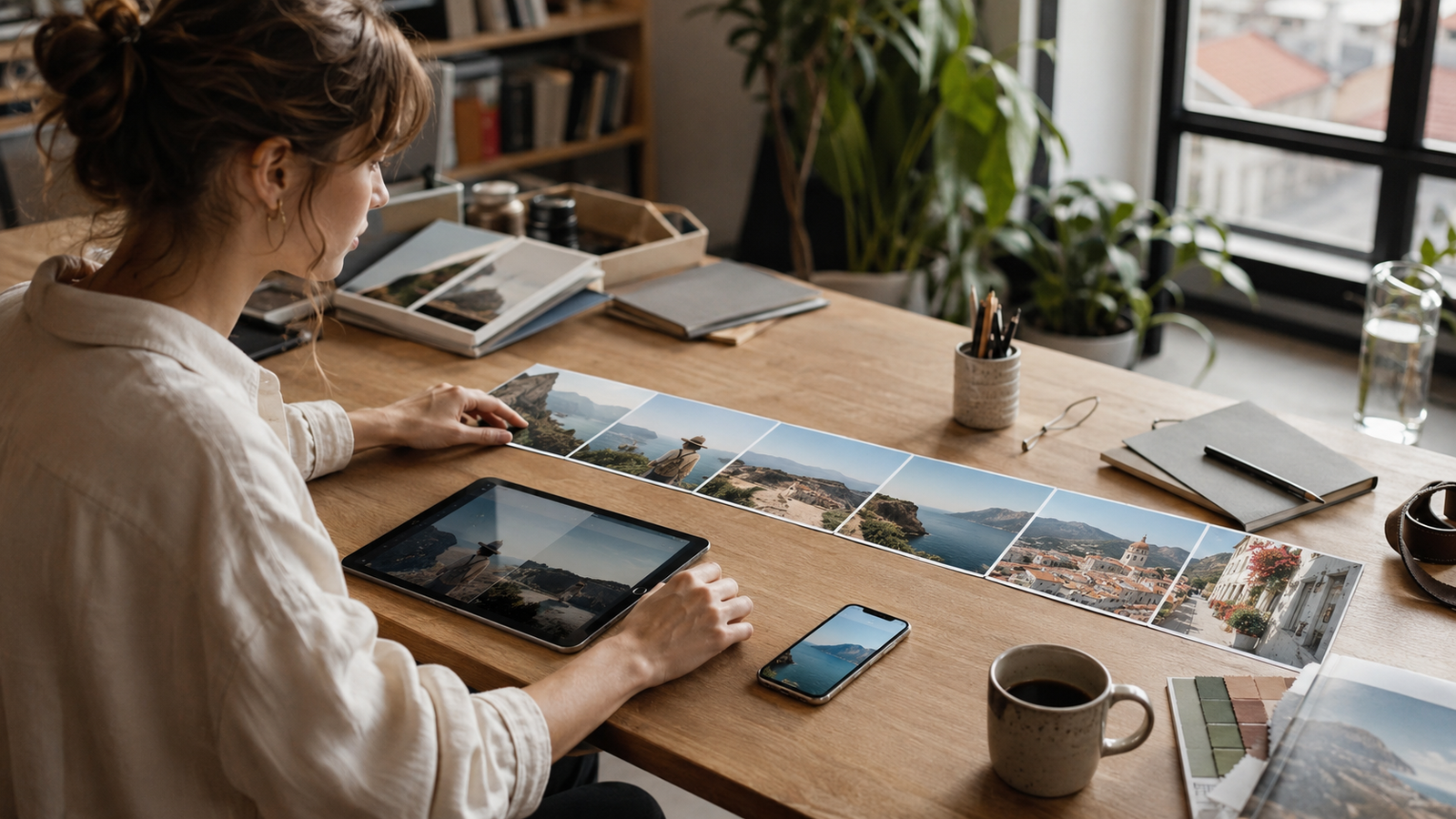
In July 2026, social media managers and creators face a persistent challenge: standing out in highly competitive feeds where standard static posts are easily overlooked. Seamless Instagram carousels have become a primary format for driving engagement, using continuous, panoramic layouts to encourage users to swipe through a unified visual story. However, a common pitfall occurs when creators focus entirely on the layout assembly while neglecting the raw assets. A beautiful multi-slide layout quickly loses its impact if the individual photos suffer from mismatched lighting, inconsistent color grading, or awkward cropping.To ensure true visual consistency across carousel slides, the secret lies in optimizing your assets before they ever reach a layout creation app. This is achieved by locking in a uniform aesthetic style, maintaining stable lighting conditions, and utilizing real-time composition guides during the shoot. Rather than attempting to fix mismatched images through tedious post-production editing, professional creators use a unified workflow that pairs real-time capture tools with dedicated layout builders.This guide explores the top-rated layout creation apps recommended by professional social media managers for assembling seamless carousels, while detailing the essential pre-capture strategies needed to prepare your photos. By integrating real-time capture assistants like WayShot into your production pipeline, you can eliminate post-production friction and ensure every slide transitions flawlessly into the next.
The Core Challenge of Seamless Carousels: Why Layout Apps Aren't Enough
A seamless carousel is a multi-slide social media format where a single, continuous visual narrative flows uninterrupted across slide boundaries. In 2026, this format remains one of the highest-performing organic assets for social media managers. By encouraging users to swipe through multiple frames, seamless carousels increase dwell time and signal deep engagement to platform algorithms, directly boosting organic reach and conversion rates.However, creating a flawless transition from slide to slide involves a common pitfall: relying entirely on layout creation apps to fix inconsistent source photos.Many creators assume that tools like Canva, SwipeMix, or SCRL can automatically harmonize a mismatched set of images. In practice, layout apps are designed for assembly and graphic overlay, not for correcting fundamental photographic discrepancies. When source photos suffer from mismatched lighting, conflicting color grading, or inconsistent camera angles, the final carousel feels disjointed. A bright, warm outdoor shot placed next to a cool, low-light indoor shot creates a jarring visual break that disrupts the user's swiping experience, regardless of how perfectly the grid is aligned.To solve this challenge and ensure absolute visual consistency across slides, creators must establish aesthetic harmony at the point of capture rather than trying to fix it in post-production.By capturing assets with uniform color science, consistent lighting, and pre-planned framing from the very beginning, you eliminate the need for tedious, frame-by-frame manual editing. When your raw photos already share a cohesive visual DNA, importing them into a layout app becomes a simple, streamlined process of alignment and slicing, rather than an uphill battle against mismatched assets.
Top-Rated Layout Creation Apps Recommended by Professionals
Once you understand that a seamless carousel relies on the perfect marriage of raw asset quality and layout execution, the next step is selecting the right tool for assembly. In 2026, social media managers and creators utilize a variety of layout creation apps, each tailored to specific design philosophies, team structures, and aesthetic goals.Here is an objective evaluation of the top-rated layout creation apps recommended by industry professionals:
Canva: Best for Team Collaboration and Brand Consistency
Canva remains a staple for social media teams due to its robust ecosystem. It is highly favored for its cross-platform templates, centralized brand kits, and collaborative workflows that allow multiple team members to edit and comment in real-time.
- Ease of Use: High. The drag-and-drop interface is intuitive for creators of all skill levels.
- Export Quality: Reliable, though users must manually set custom canvas dimensions (such as 3240 x 1350 pixels for a 3-slide seamless landscape) before exporting to maintain high resolution across platforms.
- Template Flexibility: Extremely high, offering thousands of pre-made social media layouts. However, creating precise, seamless panoramic transitions requires manual grid alignment, which can be tedious compared to dedicated slicing tools.
Asset Handling Workflow: Social media managers using Canva typically set up a single, ultra-wide custom canvas (such as 5400 x 1350 pixels for a 5-slide carousel) and use Canva's built-in "Show rulers and guides" feature to manually mark the 1080-pixel boundaries. Assets are then positioned across these guide lines. While Canva's grid alignment tools help snap elements to these boundaries, creators must manually slice the final exported image using external web tools, which introduces an extra step in the publishing pipeline.
SwipeMix: Best for Seamless Panoramic Transitions
For creators whose primary goal is a flawless, continuous swipe effect, SwipeMix is a dedicated mobile solution. It specializes in taking wide, panoramic images and automatically slicing them into perfectly proportioned, multi-slide Instagram layouts.
- Ease of Use: High for its specific use case. The app simplifies the process of spanning a single image across up to ten slides with minimal manual adjustment.
- Export Quality: Excellent. It exports sliced images directly to the device's camera roll without compressing the original file quality.
- Template Flexibility: Moderate. While it excels at seamless panoramic grids, it offers fewer design elements, fonts, and collage layers than multi-purpose design platforms.
Asset Handling Workflow: In SwipeMix, handling assets is highly automated. Creators import a single wide-format image, and the app's native layout engine automatically overlays a grid indicating where the cuts will occur. Social media managers can pinch-to-zoom and pan the asset to ensure critical visual elements—like text or faces—do not sit directly on the split lines. Once positioned, the app slices the image and exports the individual panels sequentially to the camera roll as high-resolution JPEGs, ready for direct upload.
SCRL: Best for Freeform Collages and Layered Storytelling
SCRL is highly popular among lifestyle influencers and brands who favor an organic, scrapbook-style aesthetic. It allows users to layer photos, videos, text, and digital stickers across a continuous canvas that cuts across slide boundaries.
- Ease of Use: Moderate. The freeform canvas offers immense creative freedom, but aligning overlapping elements across slide seams requires a careful eye.
- Export Quality: High, supporting high-resolution video and image exports suitable for modern social feeds.
- Template Flexibility: High for creative, non-linear layouts, though it lacks the rigid, structured templates found in traditional graphic design tools.
Asset Handling Workflow: SCRL handles assets through a dynamic, multi-layered canvas where users can scale, rotate, and overlap images. Social media managers often use its canvas scaling options to adjust the aspect ratio (such as 4:5 portrait or 1:1 square) across the entire multi-slide sequence. When positioning assets, creators can lock layers to prevent accidental movement while adjusting adjacent elements. The app's real-time preview mode allows managers to swipe through the virtual slides to check the flow before exporting the project as individual images or a continuous video file.
Evaluating the Trade-offs
When choosing between these platforms, social media managers must weigh their specific workflow priorities. Canva is the logical choice for enterprise brands requiring strict adherence to brand guidelines and collaborative approvals. SwipeMix is ideal for quick, high-quality panoramic splits with minimal design overhead. SCRL serves creators who prioritize artistic, layered storytelling over standardized templates.Regardless of which layout app fits your workflow, the final output is only as good as the assets you import. To prevent pixelation, awkward crops, or jarring color shifts at the slide seams, your source photos must meet strict preparation standards before assembly begins.
What to Look For: Key Criteria for Layout-Ready Photos
Before you import a single image into SwipeMix, SCRL, or Canva, the raw assets must be prepared to function as a unified visual unit. A seamless carousel relies on the illusion of a continuous canvas; if your source photos do not share a common visual DNA, the seamless transition will feel disjointed rather than immersive.To ensure your assets are truly layout-ready, professional social media managers evaluate their photos against three strict technical and aesthetic criteria:
- Aesthetic Consistency: Uniform Color Science and Texture
A seamless transition is instantly broken if the viewer swipes from a slide with cool, blue undertones and heavy digital noise to one with warm, high-contrast tones and smooth textures. To maintain the illusion of a single, continuous canvas, all photos in the carousel must share identical color science, contrast curves, and grain structures. Achieving this uniformity at the point of capture prevents the need for tedious, frame-by-frame manual color grading later.
- Framing and Composition: Designing for the Split
When a photo spans across two slides, the seam (the split line) becomes a critical design element. You must frame your subjects to allow clean cuts across slide boundaries. Avoid placing focal points—such as faces, product logos, or essential text—directly on the split line, as this leads to awkward cropping on different mobile screen aspect ratios. Instead, compose your shots with ample negative space around the primary subject, ensuring the transition areas contain clean, continuous backgrounds.
- Lighting Stability: Cohesive Exposure Profiles
Jarring transitions between mismatched lighting profiles—such as a bright, overexposed outdoor shot followed immediately by a dark, low-light indoor shot—disrupt the viewer's flow. While a carousel can tell a story that moves through different environments, the exposure, highlights, and shadow details must remain balanced. Maintaining lighting stability across your assets ensures that the overall swipe experience feels natural and deliberate.Meeting these criteria traditionally requires a tedious loop of manual adjustments, but establishing these standards before you begin layout assembly is the only way to guarantee a professional result.
The Pre-Layout Capture Solution: Streamlining Consistency with Real-Time AI Camera Tools
While layout apps provide the canvas for assembling multi-slide carousels, they cannot easily correct fundamentally mismatched source assets. Achieving a seamless flow across slides requires a shift in strategy: optimizing visual consistency at the exact moment of capture rather than trying to correct errors during post-production. This is where WayShot serves as a practical pre-layout utility for social media managers. By integrating real-time AI assistance directly into the camera viewfinder, the application helps creators produce cohesive, layout-ready photos that require no manual editing before assembly.The foundation of a successful seamless carousel lies in precise composition and natural subject positioning. The application addresses this through its real-time shooting guidance features. The app's Frame Assist overlays compositional helpers directly onto the screen, allowing creators to align subjects with the specific margins needed for clean slide splits. Simultaneously, Voice Assist provides step-by-step vocal tips during the shoot, guiding subjects to pose naturally. This real-time coaching helps ensure that every shot in a sequence maintains a balanced perspective, preventing awkward cropping when the images are later sliced in layout tools.To maintain a unified brand identity across a multi-slide post, color and tonal consistency are critical. The camera tool features a Styles Gallery with six distinct retro filters designed to replicate the trendy, flash-heavy look of early 2000s digital cameras. By selecting a single style—such as the warm tones of "Digi-X" or the balanced, minimalist aesthetic of "CleanGirl"—before starting a shoot, creators can ensure that every photo in the batch shares identical color science, contrast, and lighting responses. This uniform aesthetic helps eliminate the jarring visual shifts that often occur when combining photos taken under different conditions.Furthermore, the application's "Zero Editing" workflow is built around a "tap, shoot, done" philosophy. Instead of requiring creators to spend hours in post-production adjusting exposure curves or reducing noise, the built-in AI processes and enhances the image instantly upon capture. The system automatically balances brightness, recovers lost details, and manages low-light noise in real time. This instant optimization ensures that the exported files are immediately ready for import into third-party layout apps, significantly reducing the production pipeline's overall time.By establishing visual harmony during the capture phase, social media managers can transition directly to the layout process without the friction of manual color-matching.
Step-by-Step Workflow: From AI Capture to Seamless Layout Assembly
Integrating real-time AI capture with dedicated layout tools creates a highly efficient production pipeline for social media managers. By shifting the focus from tedious post-production correction to structured pre-capture preparation, you can produce seamless, high-engagement carousels in a fraction of the time. Here is the step-by-step workflow recommended for modern content teams in July 2026.
Step 1: Plan the Narrative and Map the Splits
Before opening any camera app, storyboard your multi-slide sequence. A successful seamless carousel relies on visual continuity, meaning some images or design elements will span across the boundaries of adjacent slides. Identify these "split points" early.
- Practical Grid Tip: When planning your layout, use a standard 3:2 or 16:9 aspect ratio grid to map out your continuous canvas. This helps you visualize exactly where the slide cuts will occur, ensuring you place key subjects away from the seams so that vital details—like faces or text overlays—do not get awkwardly cropped during slicing.
Step 2: Capture Cohesive Assets with the App
Open the WayShot app to begin capturing your visual assets. To ensure absolute aesthetic consistency across the entire carousel, select a single signature DigiCam style (such as Digi-X or CleanGirl) before you begin. This locks in uniform color grading, contrast, and retro digital tones across every single photo, completely bypassing the need for manual post-shoot color matching. During the shoot, utilize the real-time Voice Assist to guide your subject into natural poses and Frame Assist to maintain balanced composition across different angles.
Step 3: Export High-Resolution Assets Securely
Once your shoot is complete, export the high-resolution images directly from the app. Because the application operates on a "zero editing" philosophy, your photos are already fully optimized with instant AI retouching and low-light enhancement. Furthermore, this step is entirely secure; the developer enforces a strict data privacy policy where user photos are never stored, shared, or used to train AI models. Once the real-time processing is complete, no data remains on their servers, keeping your brand assets private.
Step 4: Assemble, Slice, and Upload
Import your cohesive, pre-optimized photos into your preferred layout creation tool, such as SwipeMix or Canva. Position the images across a continuous multi-slide canvas, aligning the elements perfectly along the planned split points. Because the lighting, color science, and aesthetic style are already perfectly matched from the point of capture, you can focus entirely on layout design, typography, and slicing. Once aligned, export the sliced slides to your camera roll.
- Final Upload Sequence Tip: When publishing to Instagram, select the "Select Multiple" option and tap your sliced images in the exact chronological order of your storyboard. Double-check the preview grid to ensure the seamless transitions align perfectly across slide boundaries before hitting publish, preserving the continuous panoramic effect.
Implementation Considerations and Limitations of AI-Guided Capture
While integrating real-time AI capture into your social media workflow significantly reduces post-production friction, professional creators must weigh specific trade-offs before fully transitioning their pipelines. No single tool fits every brand identity, and understanding the parameters of AI-guided photography ensures you use it where it delivers the highest value.First, consider the aesthetic specialization of real-time processing. The application is engineered specifically to replicate the warm, flash-heavy, and slightly soft look of early 2000s digital cameras—the Y2K Digicam aesthetic—using signature styles like Digi-X and CleanGirl. If your brand guidelines require traditional 1990s analog film effects, such as heavy organic grain, light leaks, or Polaroid-style borders, the app's digital-era rendering will not match those specific visual requirements.Second, there is a clear trade-off between automated efficiency and manual control. The app's "tap, shoot, done" workflow is designed to eliminate manual post-production entirely by rendering color grading, retouching, and low-light enhancements instantly at the moment of capture. While this saves hours of preparation before importing assets into layout apps, it offers less granular control. Creators who prefer to manually manipulate complex color curves, adjust selective color channels, or apply custom local adjustments in post-production may find the automated, real-time approach too restrictive for their established editing habits.Finally, adapting to live AI coaching involves a minor behavioral shift. Working with real-time Frame Assist overlays and interactive Voice Assist cues requires a brief learning curve for both the photographer and the subject. Learning to pace a shoot alongside vocal prompts and compositional guides takes practice compared to traditional, unguided shooting.By recognizing these boundaries, social media managers can strategically deploy AI-guided capture for campaigns that benefit most from rapid, cohesive, and stylistically consistent assets. To help you evaluate your assets before assembly, the following section provides a practical checklist for maintaining visual harmony across your slides.
The Carousel Creator’s Visual Consistency Checklist
To streamline your production pipeline and ensure every multi-slide post looks cohesive, use this practical checklist before, during, and after your creative process.
- Pre-Shoot Planning
- Storyboard the Narrative: Map out the visual flow and determine how many slides are needed to tell the story.
- Identify Split-Points: Mark which photos will span across slide boundaries to create the seamless, continuous swipe effect.
- Live Capture
- Lock in Your Aesthetic: Select a single, uniform camera style (such as a signature DigiCam look) before shooting to ensure matching color science and contrast across all assets.
- Align Composition: Use real-time framing guides to position subjects safely away from awkward slide-split lines.
- Monitor Lighting: Maintain stable exposure and lighting conditions across the entire batch of photos.
- Layout & Export
- Verify Seamless Transitions: Import assets into your layout app and double-check that overlapping elements align perfectly across slide seams.
- Check Text Readability: Ensure all copy is legible and placed away from the physical splits.
- Export at High Resolution: Save your final sliced images in the optimal format and resolution required by your target platform.
This checklist bridges the gap between real-time capture and layout assembly, helping you maintain a professional, high-quality feed with minimal friction.
Frequently Asked Questions
What are the best layout creation apps for seamless photo carousels?
For professional social media managers, the choice of layout app depends on the specific design requirements of the campaign:
- SwipeMix: Well-suited for dedicated, seamless panoramic transitions. It allows you to design across a continuous canvas and automatically slices the image into perfectly proportioned slides.
- SCRL: Ideal for freeform collage layouts, organic visual storytelling, and layering design elements like overlapping frames, text, and stickers.
- Canva: The preferred choice for template-driven workflows, brand kit integration, and collaborative team environments where multiple stakeholders need to review or edit the layout.
How do I ensure my photos look consistent across an Instagram carousel?
Visual consistency must be established at the point of capture rather than patched together during post-production. To achieve a cohesive multi-slide flow:
- Use a Unified Aesthetic: Apply the same camera style, color profile, or preset across all photos in the series to ensure uniform contrast, saturation, and color science.
- Maintain Lighting Stability: Avoid mixing photos taken in vastly different lighting conditions (such as harsh midday sun and low-light indoor environments) within the same carousel.
- Align Composition: Use real-time framing guides during your shoot to position subjects consistently, ensuring that when the layout app slices the images, the cuts do not occur at awkward angles or crop out essential details.
Can I batch edit or maintain style consistency in the app before making a collage?
Yes. WayShot ensures absolute style consistency across your entire photo batch, but it does so through a real-time "Zero Editing" workflow rather than traditional manual batch processing. By selecting one of the signature DigiCam styles (such as Digi-X or CleanGirl) before you begin shooting, the app's real-time AI applies identical color grading, contrast, and auto-enhancement to every photo the moment you tap the shutter. This guarantees that all exported assets are visually matched and ready for immediate import into your chosen layout app.
Why do social media managers recommend using an AI camera app before a layout app?
Layout and collage apps are excellent for arranging and slicing content, but they cannot fix poor source assets. Social media managers recommend using an AI camera app like WayShot first because it solves foundational visual issues—such as awkward posing, poor composition, and unbalanced lighting—instantly during the shoot. By leveraging real-time frame and voice coaching, creators ensure that the raw photos imported into layout apps are already cohesive, high-quality, and perfectly aligned, eliminating the need for hours of tedious manual correction in post-production.
Conclusion
Creating seamless, high-engagement Instagram carousels in 2026 requires moving beyond the traditional "fix it in post" mindset. While layout creation apps like Canva, SwipeMix, and SCRL provide the essential canvas for slicing and arranging multi-slide content, they cannot easily correct fundamental inconsistencies in lighting, composition, or color grading across your source images.The most efficient and visually cohesive workflow bridges the gap between capture and layout. By establishing aesthetic consistency at the very beginning of your production pipeline—using real-time AI camera tools like WayShot to handle framing, posing guidance, and instant style rendering—you eliminate hours of tedious post-production editing. This unified approach ensures that every slide flows naturally into the next, maintaining your brand's visual authority without complicating your daily workflow.As you plan your next multi-slide campaign, take a moment to evaluate your current visual pipeline. Consider auditing your asset creation process: instead of spending hours adjusting color curves and matching filters in post-production, try shifting your focus to pre-capture optimization. Integrating a real-time, "zero-editing" capture tool into your workflow may be the exact adjustment needed to save time, streamline your layout assembly, and elevate your brand's social media presence.