How to Fix Blurry Selfies and Turn Them Into Studio-Quality Portraits with AI
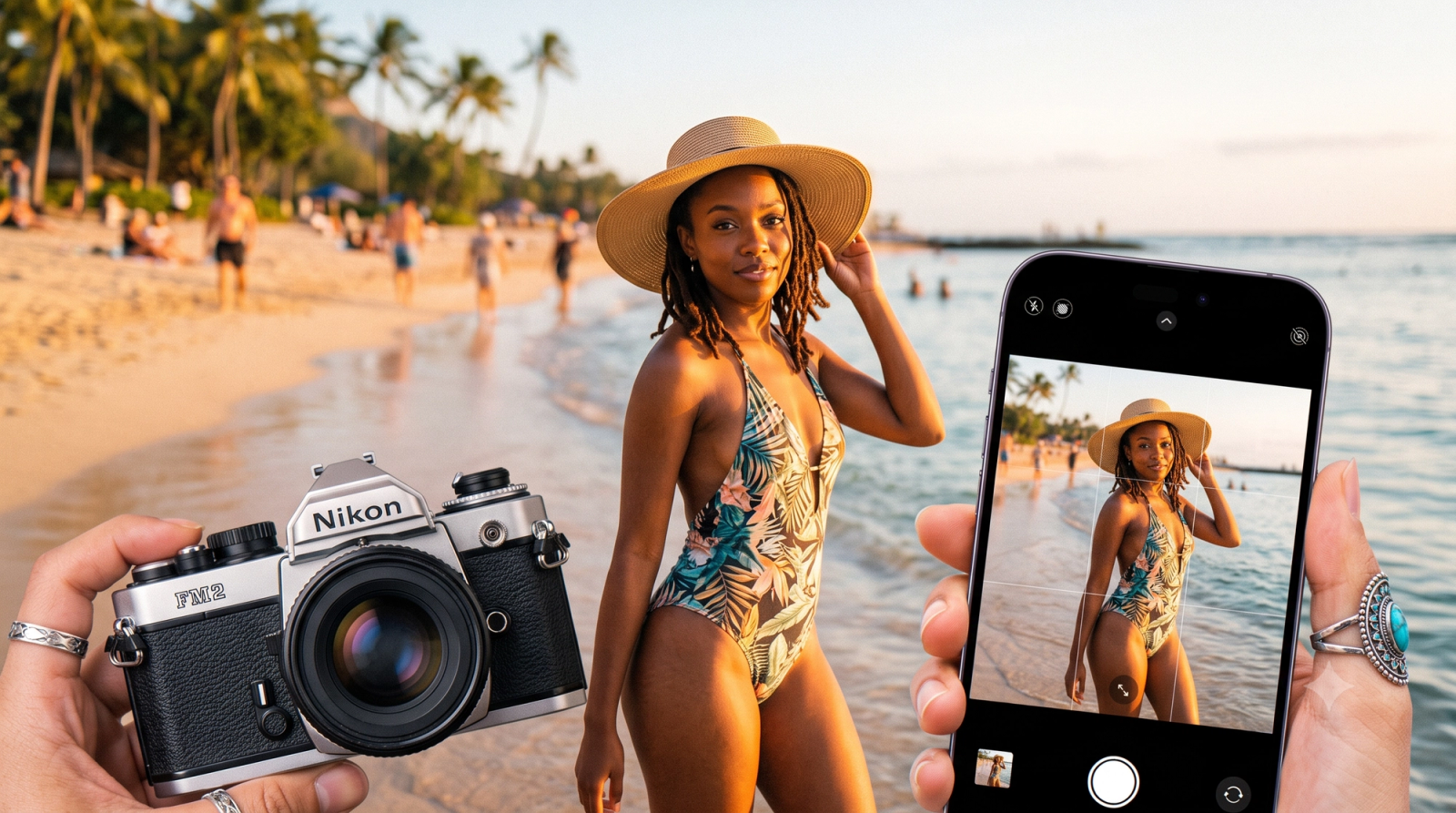
We have all experienced the disappointment of capturing what felt like the perfect moment, only to look at the camera roll and find a blurry, poorly lit selfie. Whether it is a late-night gathering with friends, a quick snapshot on a busy street, or a casual portrait meant for a professional profile, camera shake and harsh shadows frequently ruin our best shots. When this happens, mobile photographers face a practical decision problem: should you spend valuable time trying to salvage a damaged photo using complex post-capture editing apps, or is there a better way to ensure your photos look sharp and professional the moment you press the shutter?While advanced AI tools in July 2026 can work wonders to restore lost details and simulate studio-quality lighting after the fact, relying solely on post-capture editing is often a game of compromise. The most effective approach to achieving clean, studio-quality portraits is a hybrid one—combining smart post-capture restoration techniques for your existing photos with real-time AI shooting guidance that prevents blur and poor composition before they ever happen. By understanding how modern AI processes image data, you can choose the right workflow to save your irreplaceable memories and elevate your daily photography.
What to Look For in an AI Photo App for Blur Reduction and Portrait Enhancement
When searching for the right tool to salvage a compromised photo or elevate a casual snapshot into a professional-grade portrait, it is easy to get lost in a sea of generic "photo enhancer" claims. As of July 2026, mobile AI photography has advanced significantly, moving far beyond basic filters. To find an application that truly delivers clean, natural results, you should evaluate tools based on three critical technical capabilities:
- True Blur Kernel Reduction vs. Simple Edge Sharpening
Traditional editing software often relies on basic sharpening filters, which merely increase the contrast along the existing edges of an image. While this can make a photo look slightly crisper at a distance, it frequently introduces harsh digital noise, pixelated artifacts, and unnatural "halos" around subjects.In contrast, modern AI-driven tools utilize advanced blur kernel reduction. This technology mathematically analyzes the direction and spread of the blur—whether caused by a shaky hand (motion blur) or a missed focus point (out-of-focus blur). The AI then models how the light should have hit the camera sensor, effectively reversing the distortion to restore genuine clarity rather than just masking the softness.
- Intelligent Detail Reconstruction
A high-quality portrait relies on fine textures—the individual strands of hair, the natural grain of the skin, and the sharp reflection in the eyes. When evaluating an AI photo app, look for how it handles facial reconstruction.Lower-tier apps often apply a heavy-handed "beauty" filter that simply smooths over blurry areas, resulting in a flat, plastic look. Sophisticated AI models are trained to recognize facial anatomy. Instead of erasing texture, they reconstruct missing details intelligently, ensuring that eyes look bright and sharp while maintaining the authentic character of your skin.
- Smart Studio Lighting Simulation
A sharp photo is only half the battle; achieving a "studio portrait" aesthetic requires sophisticated light control. Professional studios use complex multi-light setups (including key lights, fill lights, and rim lights) to create depth and highlight facial features.The best AI enhancement tools do not just apply a flat brightness overlay. Instead, they analyze the three-dimensional geometry of the face and simulate how professional studio lights would interact with your features post-capture. This adds dimension, softens harsh shadows, and creates a polished, intentional look.Understanding these technical baselines makes it much easier to assess the tools available on the market. However, knowing what technology to look for is only the first step. The next crucial decision is determining when to apply these tools in your creative process—specifically, whether to fix mistakes after they happen or prevent them entirely at the moment of capture.
The Tradeoff: Real-Time AI Coaching vs. Post-Capture Editing
When striving for studio-quality portraits on a mobile device, photographers generally navigate between two distinct workflows: fixing the image after it is taken, or optimizing the capture process as it happens. Both methodologies have clear advantages, but they serve different creative needs and produce varying levels of efficiency.
Post-Capture Editing: Salvaging the Irreplaceable
Traditional post-capture editing remains an essential tool for mobile photographers. Its primary strength lies in its ability to salvage existing, irreplaceable photos—such as a candid moment, a travel memory, or a rare group shot that cannot be re-taken.However, post-capture restoration is inherently limited by the quality of the original image data. If a selfie suffers from severe motion blur, extreme low-light noise, or poor focus, much of the essential visual information (such as the fine textures of the skin or the sharp details of the eyes) is never recorded by the camera sensor. While modern AI-powered editing tools can attempt to reconstruct these missing details, the process often requires significant manual adjustment and can sometimes result in an unnatural, over-processed appearance.
Real-Time AI Coaching: Preventing the Flaws
In contrast, real-time AI coaching represents a shift from correction to prevention. By integrating AI assistance directly into the shooting process, this approach addresses the root causes of poor photos—such as camera shake, bad lighting, and awkward framing—before the shutter is ever pressed.Real-time guidance offers several distinct advantages:
- Active Blur Prevention: The AI monitors device stability and subject movement in real time, prompting the user or adjusting internal settings to ensure a sharp capture.
- Optimized Composition: Live framing guides help position the subject correctly, mimicking the compositional decisions of a professional studio photographer.
- Immediate Lighting Calibration: Instead of trying to artificially brighten dark shadows later, real-time systems help users position themselves relative to available light sources for optimal exposure.
The Efficiency of a "Zero Editing" Workflow
For daily content creators and casual users alike, the transition to a "zero editing" workflow significantly improves efficiency and consistency. Instead of spending valuable time adjusting sliders, applying sharpening filters, and correcting colors across dozens of photos after a shoot, a real-time assisted workflow delivers sharp, balanced, and stylized images the exact moment they are captured. This immediate readiness allows users to share high-quality portraits instantly without the friction of post-production.While real-time coaching is highly effective for future captures, it cannot help the photos already sitting in your camera roll. Understanding how to handle those existing files is crucial. In the next section, we will explore the specific steps required to salvage and restore the blurry selfies you have already taken.
How to Salvage Blurry Selfies: A Step-by-Step Restoration Workflow
When you capture a fleeting, candid moment only to realize later that the image is soft or out of focus, you do not necessarily have to delete it. While preventing camera shake during capture is always the ideal scenario, modern AI restoration workflows make it entirely possible to salvage existing photos.To transform a compromised selfie into a clean, presentable portrait, follow this structured step-by-step restoration workflow:
Step 1: Assess the Blur Type
Before applying any digital corrections, identify the root cause of the image degradation. Mobile photos typically suffer from two distinct types of blur:
- Motion Blur: Caused by camera shake or a moving subject. This presents as directional streaks or double edges.
- Out-of-Focus Blur: Occurs when the camera lens focuses on the background rather than your face, resulting in a uniform, soft haze across your features.
Understanding this distinction helps you determine how aggressively the AI reconstruction tools will need to work to recalculate the lost edge details.
Step 2: Apply AI-Powered Detail Recovery
Traditional sharpening tools merely increase the contrast along existing edges, which often introduces harsh digital noise and halos. Instead, utilize advanced AI-powered detail recovery. These algorithms analyze the degraded pixels and reconstruct essential facial geometry—such as the clarity of the iris, individual strands of hair, and natural skin texture—by predicting what the original shapes should look like based on deep learning patterns.
Step 3: Adjust Contrast and Exposure for Studio Depth
Blurry photos often suffer from flat, muddy lighting that flattens facial dimensions. To simulate a professional studio portrait, manually adjust the exposure curves:
- Increase Highlights: Gently brighten the key areas of the face, such as the forehead, bridge of the nose, and cheekbones, to mimic a directional studio key light.
- Deepen Shadows: Add subtle contrast to the sides of the face and under the jawline to create depth and a slimming, sculpted effect.
Step 4: Apply Stylistic Filters to Blend Artifacts
Heavy AI reconstruction can sometimes leave behind minor digital artifacts or an overly digitized "painted" look. To mask these imperfections naturally, apply a subtle stylistic filter. Utilizing a warm vintage tone or a soft, early-2000s digital camera aesthetic can blend these artifacts into the image's natural grain. This creative choice makes any remaining softness look like an intentional, stylized artistic decision rather than a technical mistake.While this post-capture workflow can work wonders on mild to moderate blur, salvaging severely pixelated or completely blacked-out photos remains highly difficult. Relying entirely on post-processing means you are always working backward from a flawed original. This limitation highlights the value of shifting from reactive editing to proactive capture.
Preventing the Blur: How WayShot Reinvents the Selfie Workflow
While post-capture restoration tools are invaluable for salvaging existing photos, relying solely on editing means you are always playing catch-up with image quality. A different approach is to address the root causes of poor photos—such as camera shake, bad lighting, and awkward angles—at the exact moment you press the shutter.WayShot approaches mobile photography from this preventive perspective. Instead of functioning as a traditional, manual post-production editor, the app acts as an AI-powered virtual photography coach that actively guides you during the shooting process. By assisting you in real time, it helps eliminate the common mistakes that lead to blurry, poorly composed selfies in the first place.This real-time assistance is driven by two core features designed to optimize your capture workflow:
- Frame Assist: This feature analyzes your camera feed in real time, providing instant visual guidance on composition and angles. It helps you position your phone correctly to capture balanced, well-framed portraits without the typical trial-and-error.
- Voice Assist: To help you look natural and relaxed, this feature delivers step-by-step voice tips that guide you through poses and expressions during the shoot, reducing the stiff or awkward look often associated with casual selfies.
By guiding your physical setup, these tools minimize the sudden movements and unstable grips that frequently cause motion blur.Once you take the shot, the app initiates an instant AI retouching process. Rather than requiring you to open a separate editor to adjust sliders, WayShot processes the image the moment it is captured. This "zero editing" workflow automatically manages low-light noise reduction, recovers fine details, and balances exposure. If you are shooting in dim environments, the AI works instantly to stabilize the image data, delivering a sharp, balanced portrait that is ready to share immediately.For creators looking for a specific stylistic direction beyond a clean studio portrait, the app includes options to recreate a distinct retro look. WayShot features six signature "DigiCam" styles—including Digi-X, DigiLite, and CleanGirl—that replicate the warm tones, heavy flash response, and soft rendering characteristic of early 2000s digital cameras (the Y2K Digicam aesthetic). This built-in processing applies the stylized color grading and contrast in real time, bypassing the need for manual vintage filters later.Furthermore, this real-time processing is built on a privacy-first framework. Unlike platforms that upload your images to external servers for rendering or model training, WayShot processes photos instantly on your device. Your images are never stored, shared, or used to train AI models, ensuring your personal photos remain entirely under your control.By shifting the focus from fixing mistakes to capturing images correctly from the start, you can significantly reduce the time spent on post-capture corrections. However, even with real-time assistance, achieving a natural look requires avoiding common pitfalls during both the shooting and automatic enhancement phases.
Common Mistakes to Avoid When Enhancing AI Photos
When using AI tools to salvage a blurry selfie or elevate a casual photo into a studio-quality portrait, it is easy to overcorrect. Modern AI photo enhancement algorithms are incredibly powerful, but applying them without a balanced approach can quickly lead to unnatural results. To keep your portraits looking professional, authentic, and believable, keep an eye out for these common enhancement pitfalls.
- Over-Smoothing Skin Textures
One of the most frequent mistakes in AI portrait enhancement is aggressive skin purification. When an algorithm attempts to remove blemishes, noise, or minor blur, it can easily over-smooth the face, erasing natural skin pores, fine lines, and subtle shadows. This results in a flat, "plastic" or "wax museum" appearance. To maintain a realistic look, ensure your enhancement settings preserve the micro-textures of the skin, keeping the subject looking like a real person rather than a heavily rendered digital avatar.
- Aggressive Sharpening and Halo Artifacts
To combat blur, many users turn up the sharpening or detail-recovery sliders to their maximum limits. However, over-sharpening introduces harsh digital artifacts. You may notice bright halos forming around high-contrast edges—such as the silhouette of a jawline, hair strands, or clothing. It can also amplify background grain, turning soft areas into distracting digital noise. A successful restoration relies on subtle, incremental adjustments rather than forcing extreme contrast onto soft edges.
- Ignoring Background Coherence
A highly detailed, perfectly sharp face set against a heavily pixelated, low-quality background creates an immediate visual mismatch. When AI selectively enhances only the facial region, the sudden transition from a crisp portrait to a muddy, compressed background exposes the edit as artificial. A professional-looking portrait requires environmental harmony; the background blur should look like natural camera depth-of-field (bokeh) rather than unedited digital compression.By understanding these common pitfalls, you can approach post-capture editing with a more critical eye. However, even with perfect editing habits, some photos remain difficult to salvage due to the sheer lack of original visual data. In the next section, we will look at how to manage expectations by identifying when AI restoration works best and where its physical limits lie.
When This Approach Fits: Managing Expectations for AI Restoration
While modern AI photo enhancement tools have transformed mobile photography in July 2026, understanding the boundaries of this technology is essential for achieving the best results. AI restoration is highly sophisticated, but it operates on mathematical probability and pattern recognition rather than magic. Knowing when to rely on post-capture restoration—and when to pivot to real-time prevention—will save you hours of frustrating editing.
When AI Restoration Works Best
AI restoration algorithms excel when they have a solid foundation of visual data to work with. The technology is highly effective in the following scenarios:
- Mild Motion Blur: Small hand tremors or slight subject movement can be successfully corrected as the AI recalculates the blur kernel and realigns the edges.
- Slightly Out-of-Focus Shots: When the camera lens misses the focus point by just a few inches, AI can reconstruct the lost high-frequency details of facial features like eyes, eyelashes, and skin texture.
- Poor Lighting Conditions: Low-light noise, underexposure, and harsh shadows can be balanced beautifully using neural networks trained on professional studio lighting setups.
Limitations to Consider
Despite these advancements, certain photographic errors cannot be fully repaired after the fact. It is important to recognize these physical limitations:
- Severe Physical Lens Damage: If your smartphone lens is smudged with oil, scratched, or cracked, the incoming light is physically distorted. AI cannot clean a physical lens retroactively; it can only attempt to mask the resulting haze.
- Extreme Motion Blur: When a photo is so blurry that the subject's face is completely unrecognizable, there is not enough original pixel data left. In these cases, AI is forced to completely invent facial features, which often leads to an unnatural, "uncanny valley" appearance.
- Lack of Physical Depth Data: Traditional 2D images lack the layered depth information captured by multi-lens systems or specialized sensors. Trying to simulate complex, variable depth-of-field (bokeh) on a flat, highly blurred image can result in messy, artificial-looking edges around hair and clothing.
By managing these expectations, you can better decide whether a damaged photo is salvageable through post-processing, or if it is time to adopt a real-time assistant that prevents these issues from occurring in the first place.
Frequently Asked Questions
Can WayShot fix photos that are already blurry?
WayShot is primarily engineered as a real-time AI shooting assistant designed to prevent blurry photos at the moment of capture. Its instant AI retouching engine automatically optimizes details, reduces low-light noise, and balances brightness the exact millisecond you press the shutter.If you have an existing, heavily blurred photo taken outside of the app, you may need traditional post-capture restoration software to salvage it. However, by using WayShot's live guidance for your future photos, you eliminate the need for tedious post-capture editing altogether, ensuring your shots are sharp, balanced, and ready to share immediately.
What is the best way to get a studio portrait look on a mobile phone?
Achieving a professional studio portrait look requires three core elements: balanced lighting, clean composition, and sharp focus. Traditionally, this required expensive studio gear or intensive manual editing in post-production.As of July 2026, the most efficient way to achieve this on a phone is by utilizing real-time AI camera assistants. Tools like WayShot guide your angles, framing, and posing during the shoot while instantly adjusting for low-light conditions. This active guidance ensures your phone camera captures the depth, clarity, and balanced illumination typically associated with professional studio setups.
Does WayShot support vintage film effects?
WayShot specializes specifically in the early 2000s digital camera aesthetic (the Y2K Digicam look) rather than traditional 1990s analog film. If you are looking for heavy film grain, light leaks, or Polaroid borders, a dedicated analog emulation app would be a better fit.Instead, WayShot features 6 signature "DigiCam" styles—including Digi-X, Digi-S, and DigiLite—designed to replicate the flash-heavy, warm, and slightly soft rendering of classic point-and-shoot digital cameras. These styles process color grading and contrast in real-time as you shoot, capturing that authentic retro digital vibe instantly.
Conclusion
Navigating the world of mobile photography in July 2026 reveals that while post-capture editing tools have come a long way in salvaging imperfect shots, they often act as a digital band-aid for issues that could have been avoided. Relying solely on AI to reconstruct heavily blurred faces or simulate missing lighting data can sometimes result in an unnatural, over-processed look.The most effective path to achieving consistent, studio-quality portraits is to shift from a reactive editing mindset to a proactive capture workflow. By combining smart, instant detail recovery with real-time AI guidance, you can ensure that every selfie is perfectly framed, naturally posed, and optimally lit the moment you press the shutter.If you are ready to move past the tedious cycle of post-capture editing and want to experience a seamless, "zero editing" workflow that delivers sharp, beautifully rendered portraits instantly, explore how real-time AI camera assistance can transform your photography at WayShot.